📦 Installing a modpack on your Minecraft server#
Learn how to easily install a modpack on your Minecraft server hosted at LibraHost. With our built-in modpack explorer, you can search and install modpacks directly from the panel, without manual downloads!
🎯 Objective#
- Use the built-in modpack explorer
- Search and browse available modpacks
- Install a modpack in a few clicks
- Configure and launch your modded server
🧰 Prerequisites#
- A Minecraft server at LibraHost
- Access to the management panel
- Sufficient allocated RAM (minimum 4 GB recommended for modpacks)
1️⃣ Accessing the modpack explorer#
🔹 Opening the modpack manager#
- Log in to your LibraHost client area
- Select your Minecraft server
- In the navigation bar, click on Modpacks
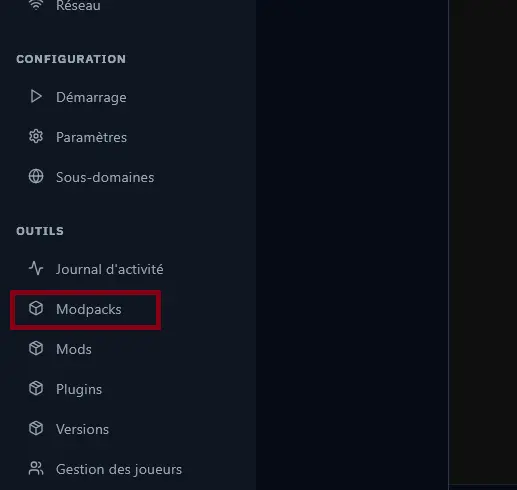
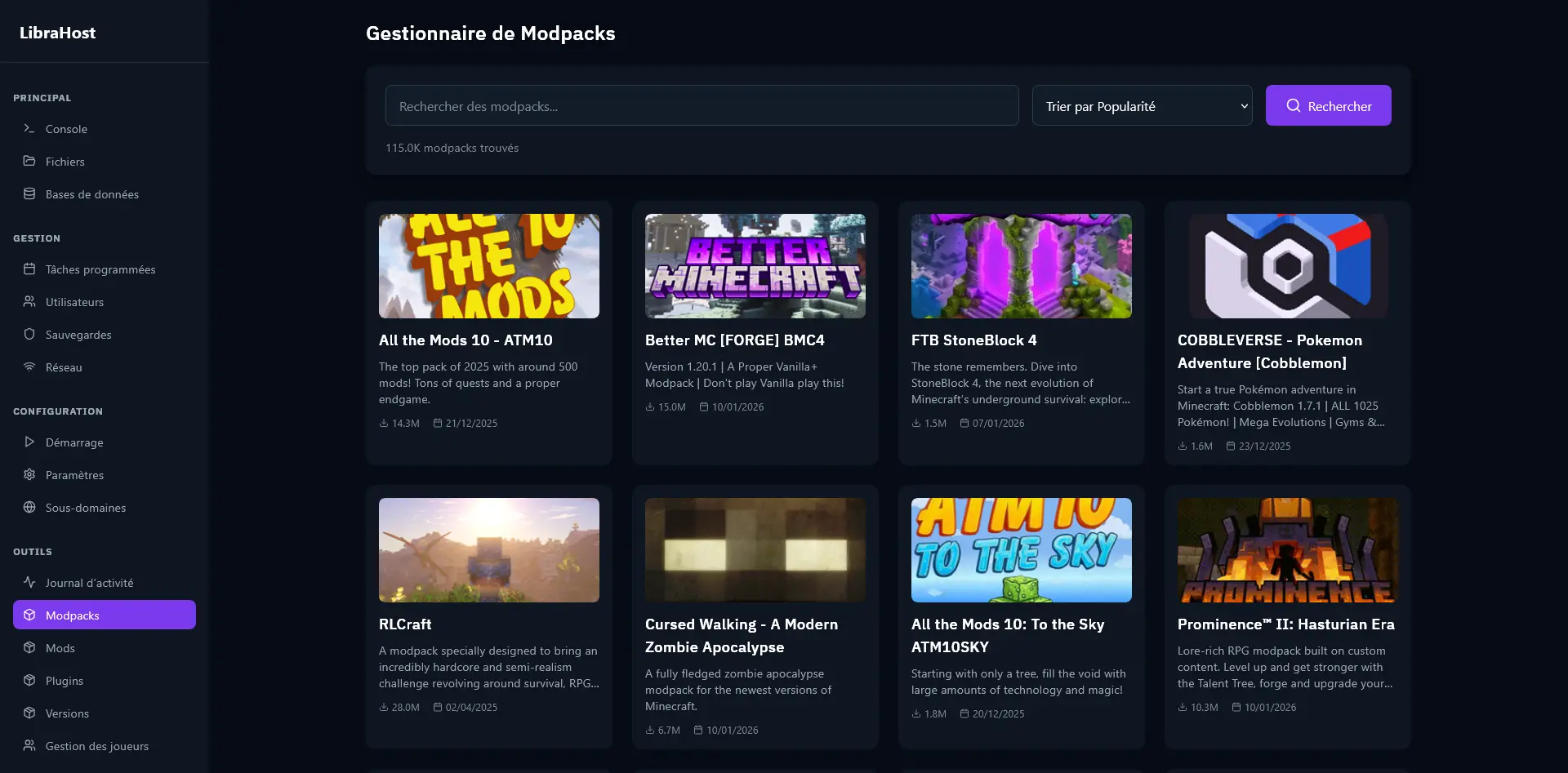
You will arrive at the Modpack Manager, which automatically displays the most popular modpacks.
2️⃣ Searching for a modpack#
🔹 Using the search bar#
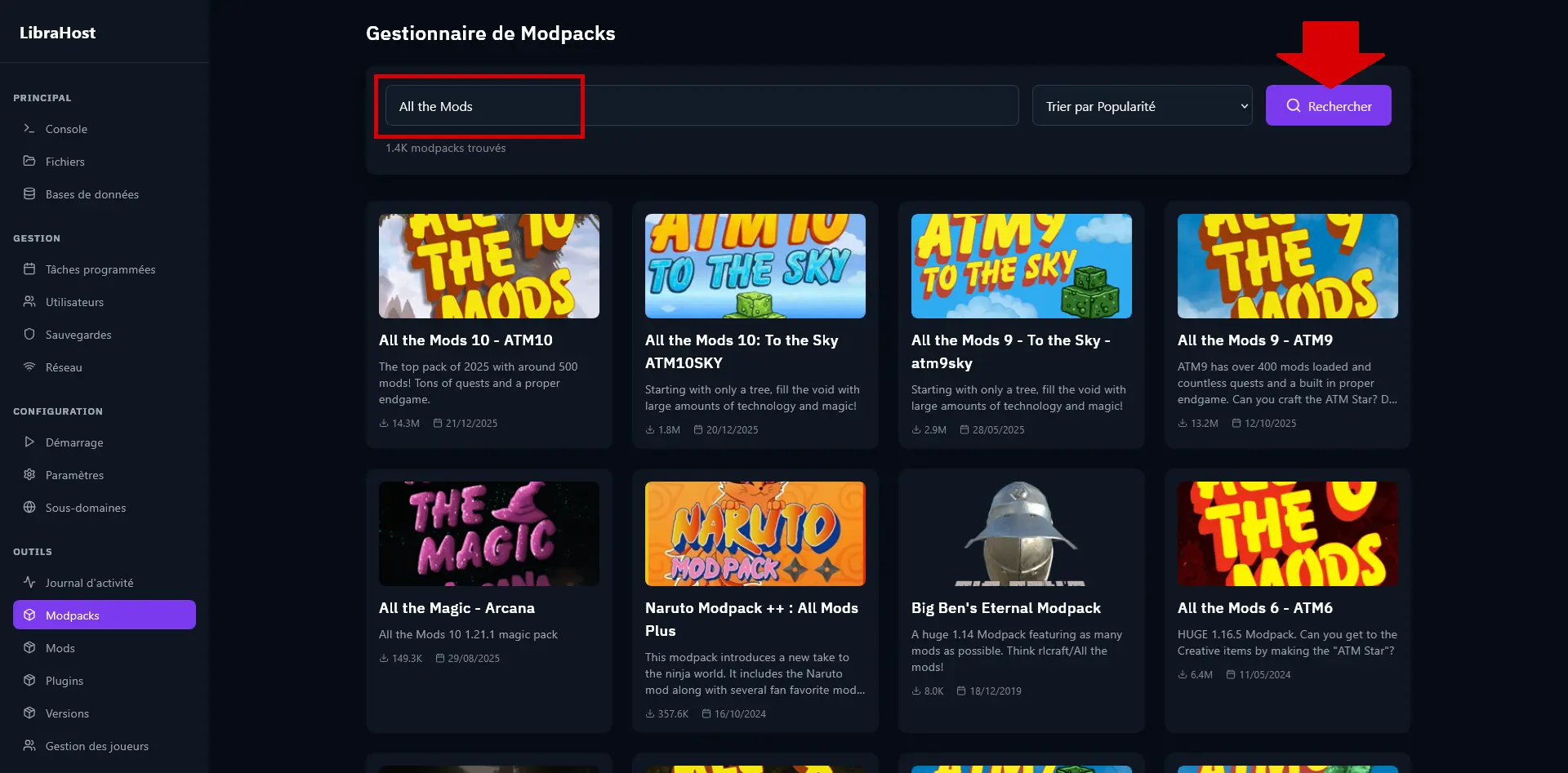
- Type the name of the modpack you're looking for in the "Search modpacks..." field
- Click the Search button or press Enter
🔹 Sorting results#
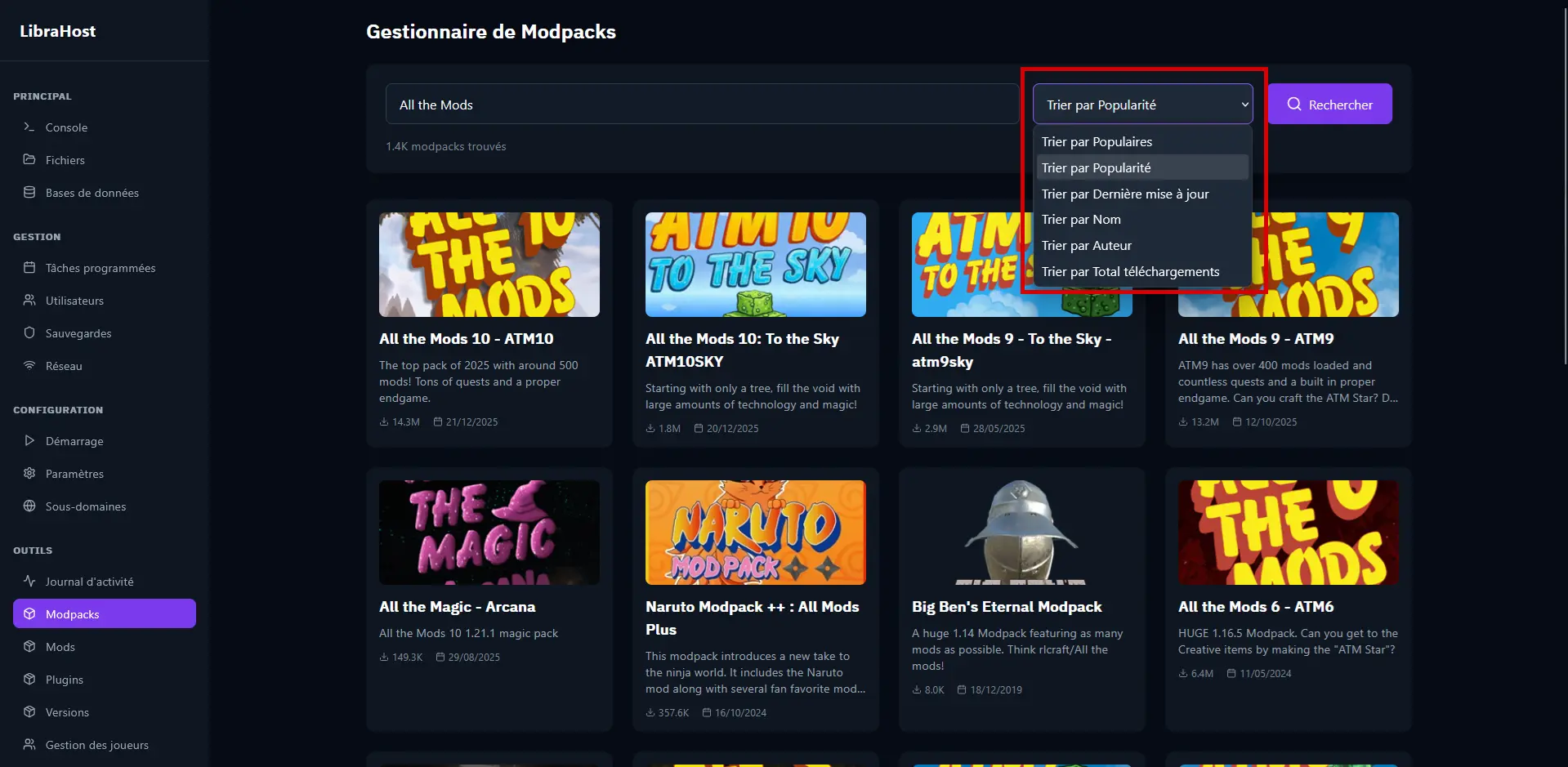
Use the dropdown menu to sort modpacks according to your preferences:
| Option | Description |
|---|---|
| Featured | Modpacks featured by CurseForge |
| Popularity | Ranking by recent downloads |
| Last Updated | Recently updated modpacks |
| Name | Alphabetical order |
| Author | Ranking by author name |
| Total Downloads | Ranking by total download count |
🔹 Browsing results#
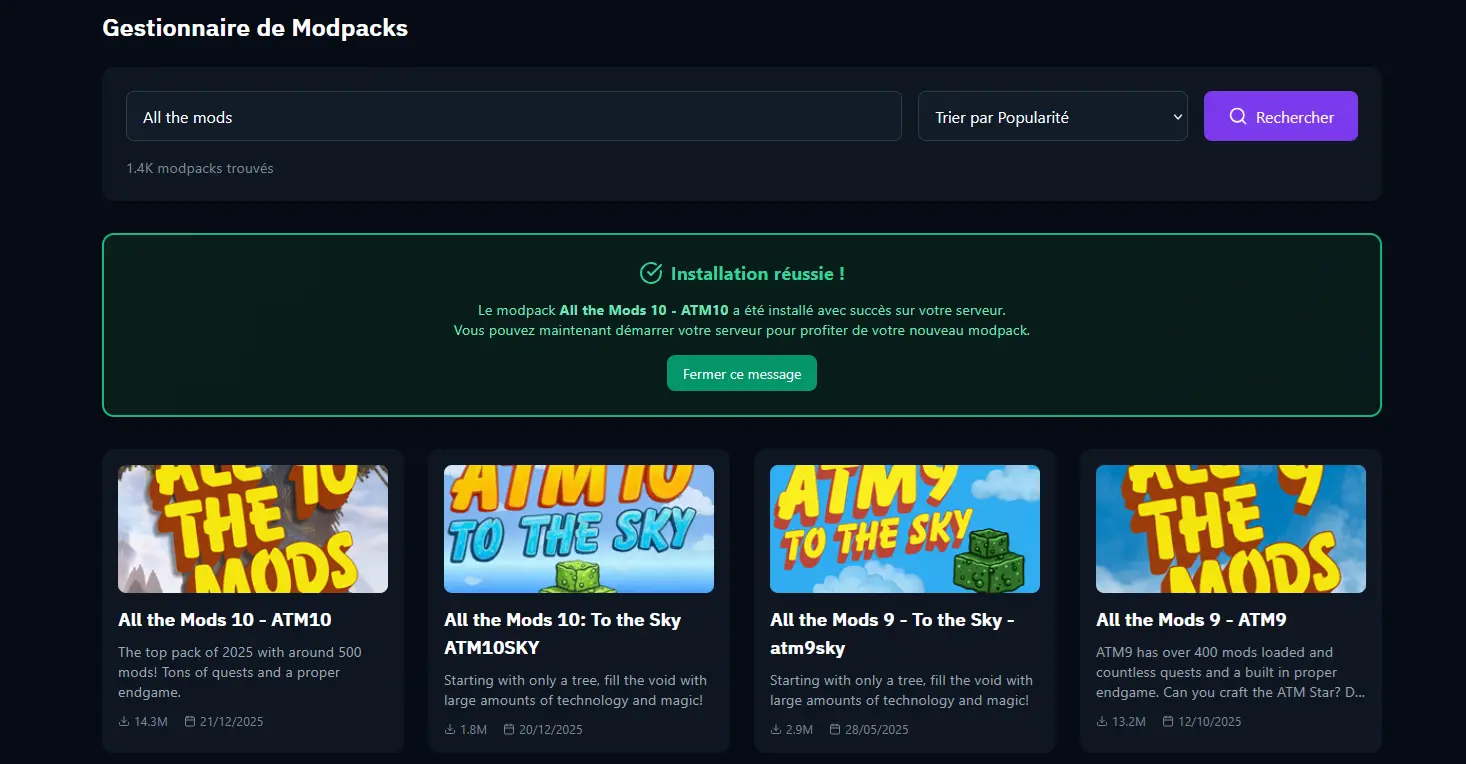
Modpacks are displayed as cards with:
- The modpack image
- The title
- A short description
- The download count
- The last update date
3️⃣ Viewing modpack details#
🔹 Opening the modpack page#
Click on a modpack card to open its detailed page.
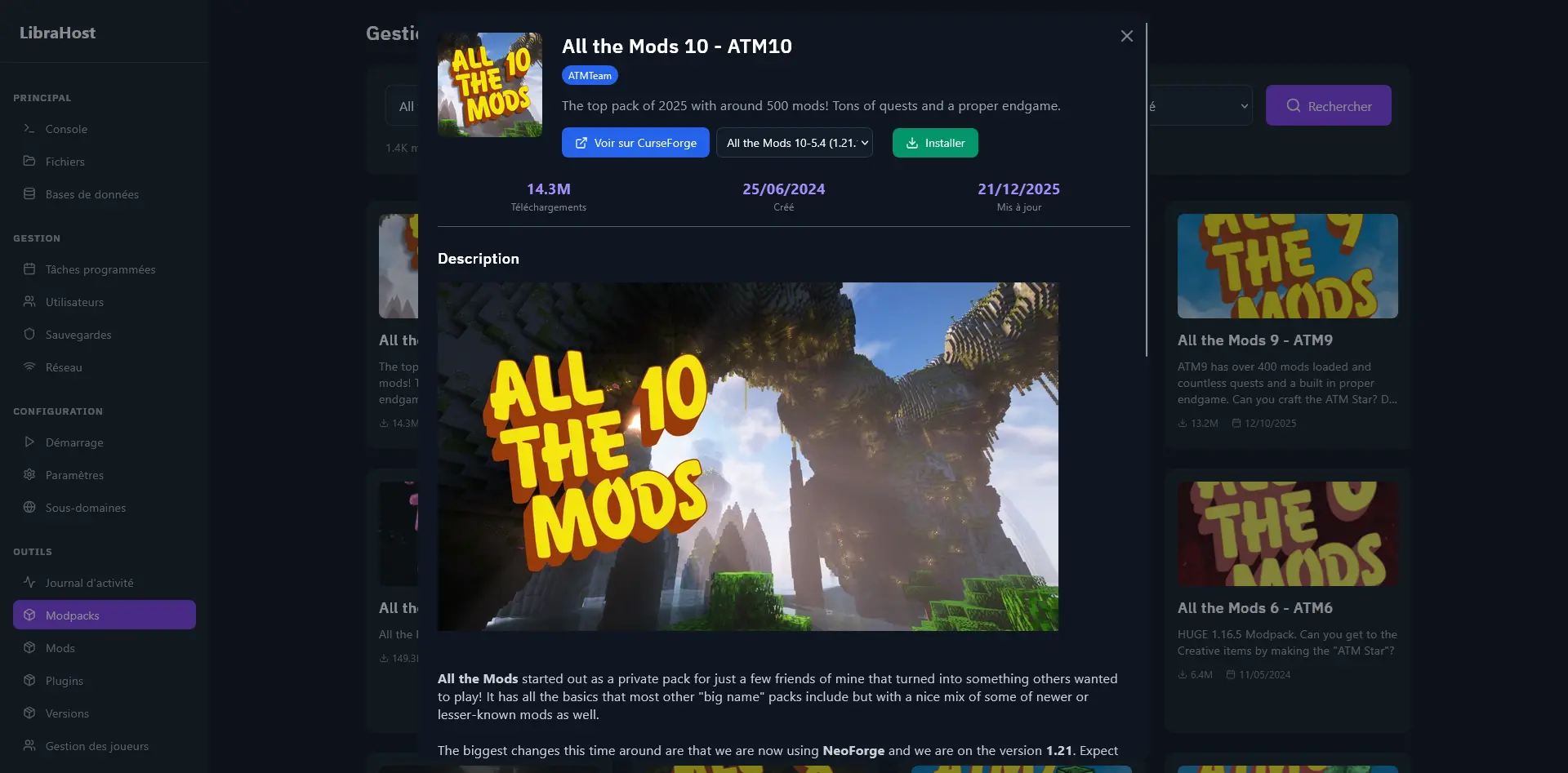
The page displays:
- Image and title of the modpack
- Author(s) of the project
- Full description with all information
- Statistics: downloads, creation and update dates
- Available versions in the dropdown menu
🔹 Choosing the version#
- Click on the version dropdown menu
- Select the desired version (Minecraft version + modpack version)
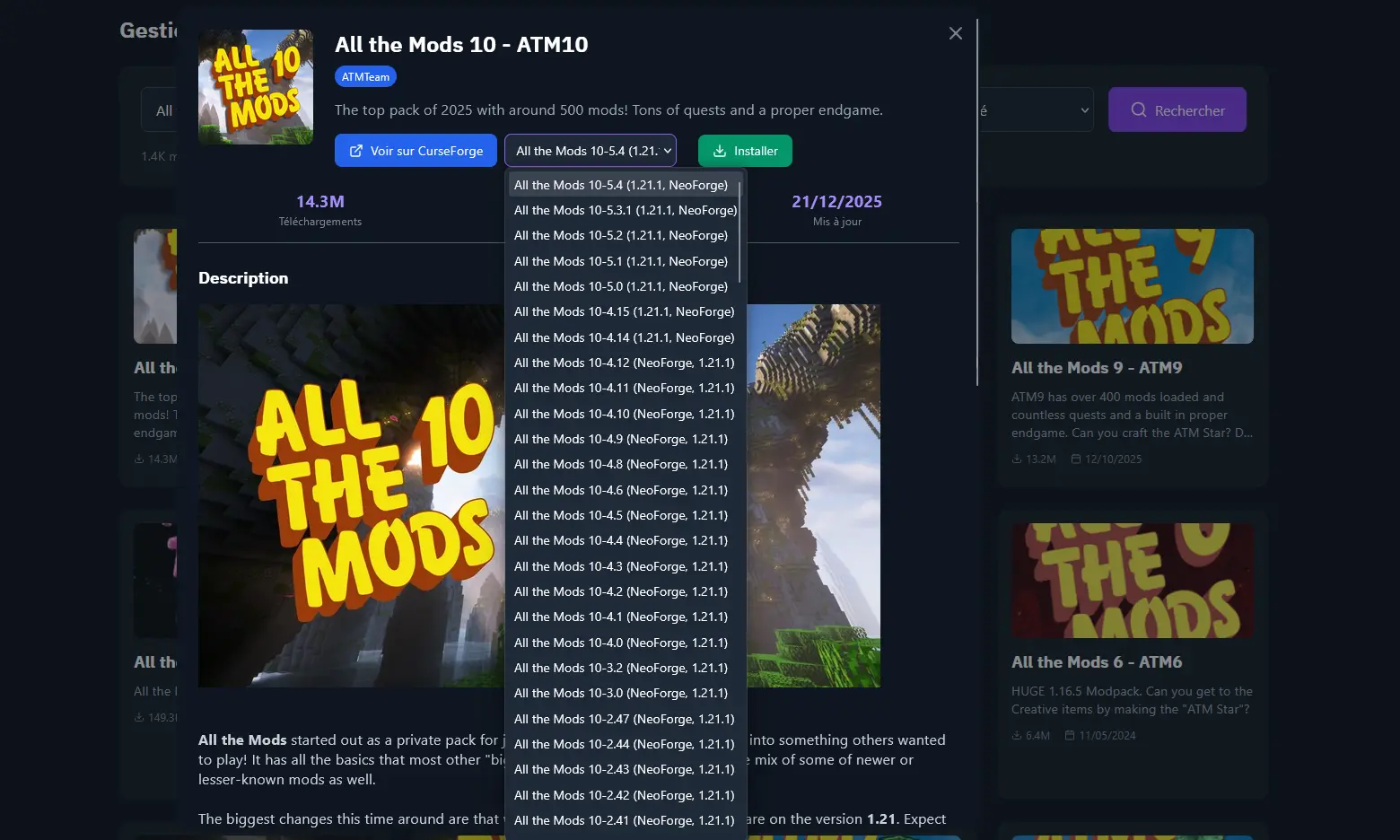
💡 Tip: Choose a stable and recent version. The "latest" version is usually pre-selected by default.
🔹 Learning more on CurseForge#
Click on "View on CurseForge" to access the official modpack page and view more information (changelog, wiki, comments).
4️⃣ Installing the modpack#
🔹 Starting the installation#
- Verify that the correct version is selected
- Click the Install button
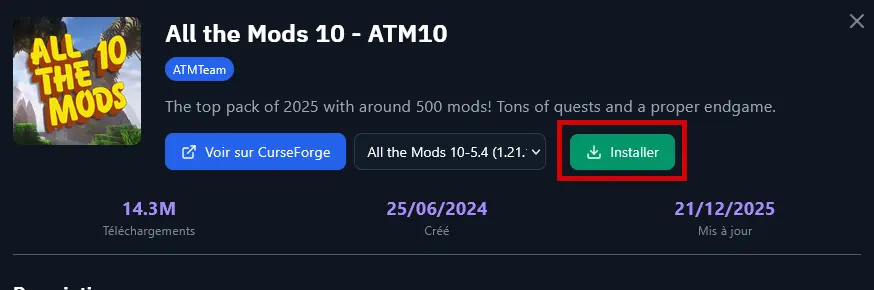
⚠️ Warning: The installation will delete all existing files on your server. Make sure to create a backup if necessary (see next section).
🔹 Following the progress#
Once the installation starts, a progress bar is displayed:
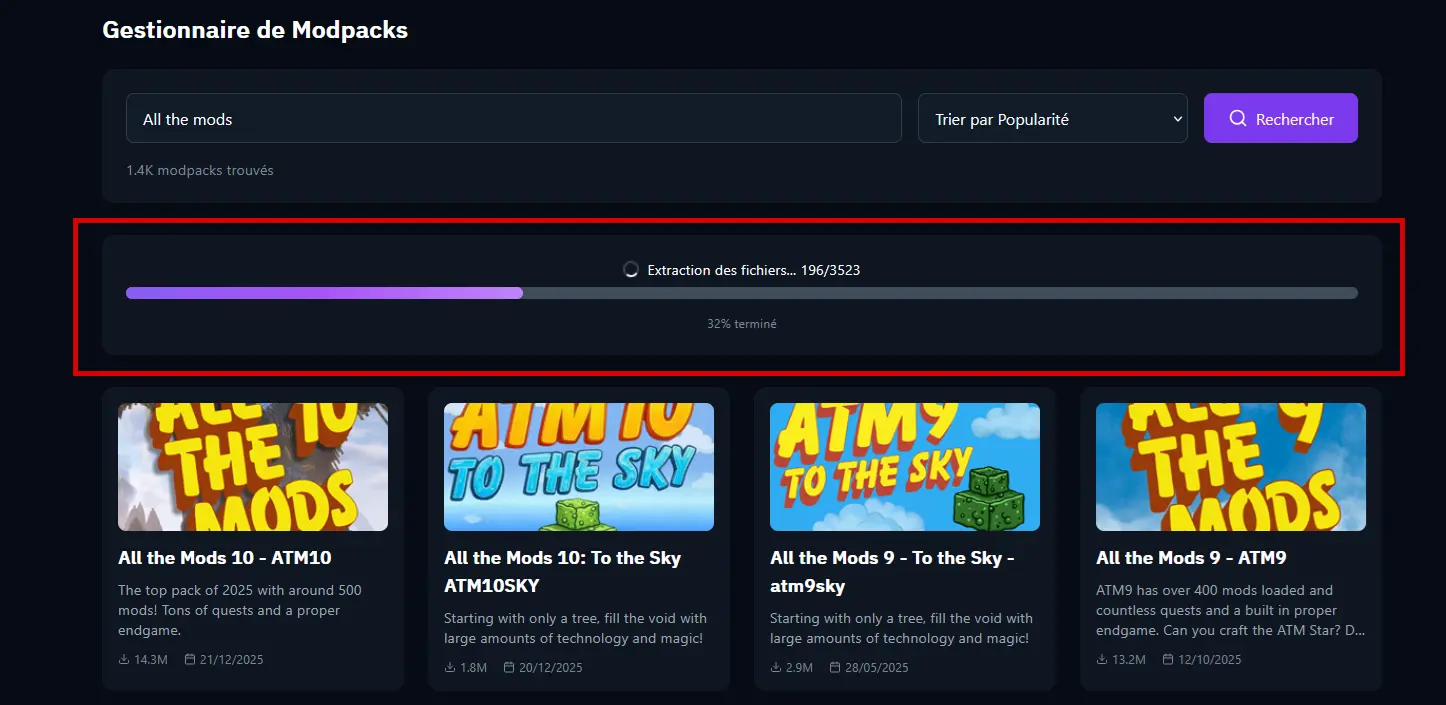
The installation steps are:
- Download - Retrieving the modpack from CurseForge
- Extraction - Decompressing the archive
- Processing - Configuring the files
🔹 Installation complete#
When the installation is finished, a green success message is displayed.
5️⃣ Configuring and starting the server#
🔹 Configuring the startup command#
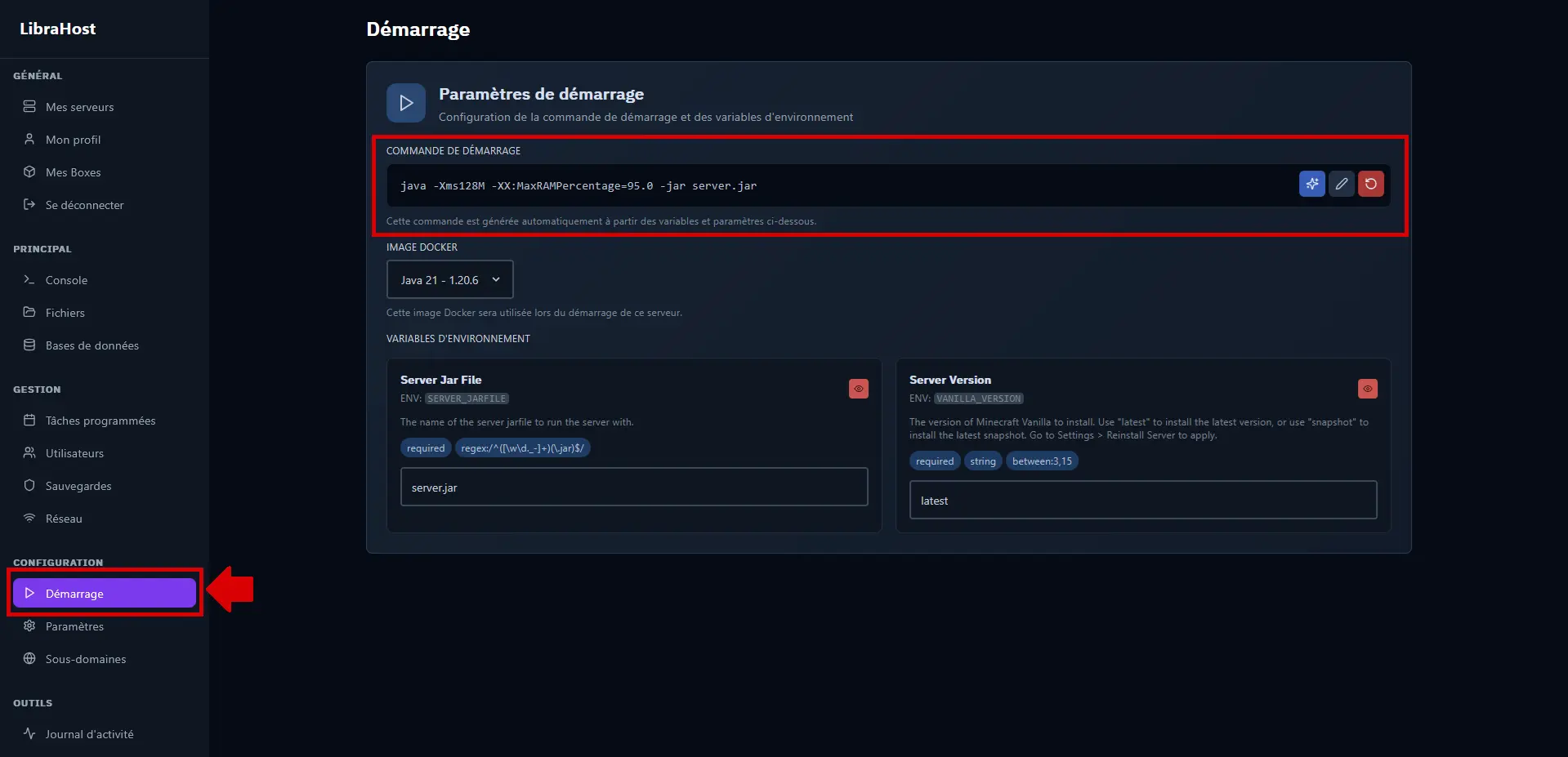
After installing a modpack, you need to configure the startup command so the server knows which file to execute.
- Go to the Startup tab
- Locate the Startup Command section
🔹 Using automatic suggestions#
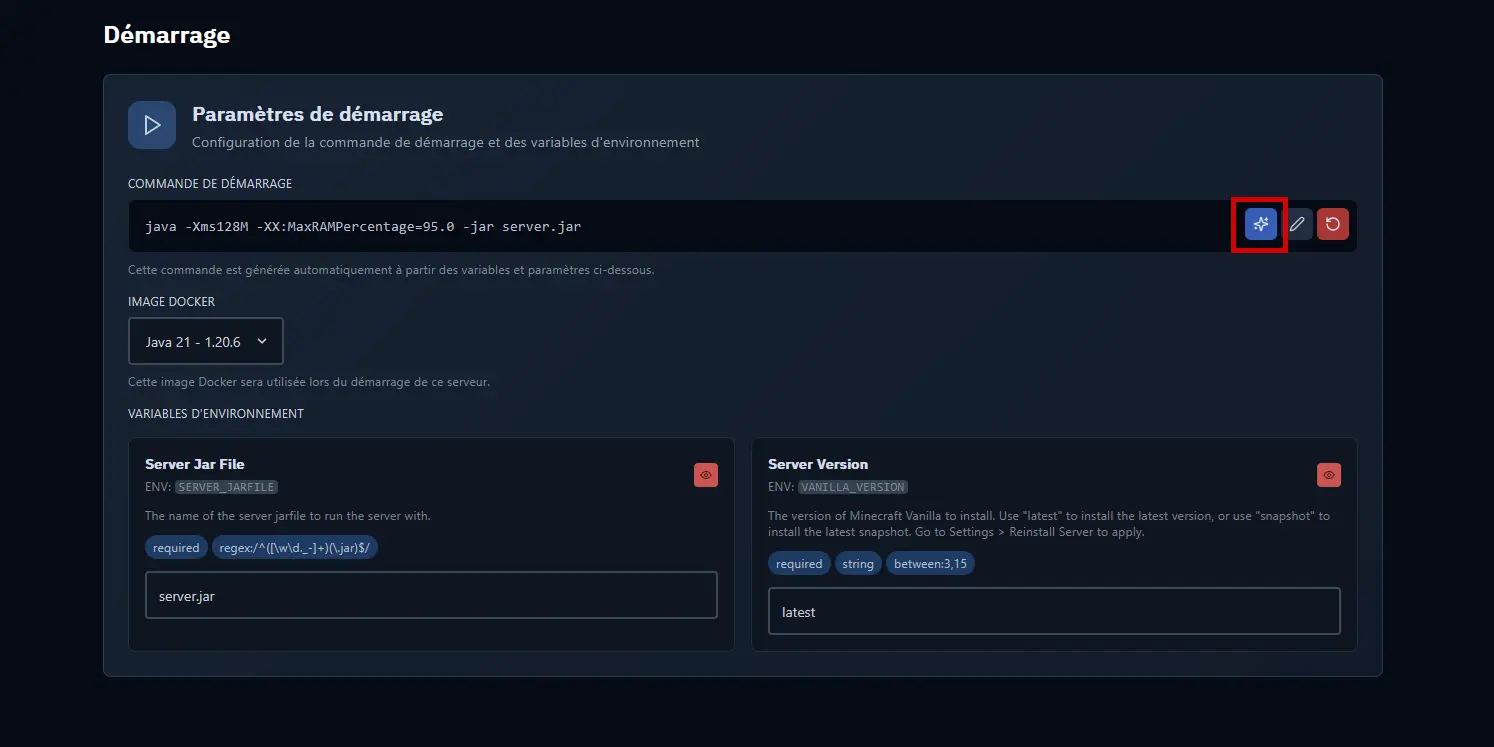
LibraHost offers an automatic detection feature that analyzes your server files and suggests the appropriate startup command.
- Click the ✨ (star) button next to the startup command
- The system automatically analyzes the server files
- A window opens with startup command suggestions
- Review the proposed suggestions:
- Each suggestion displays a name, a description, and a command preview
- Suggestions are based on detected JAR files (Forge, Fabric, etc.)
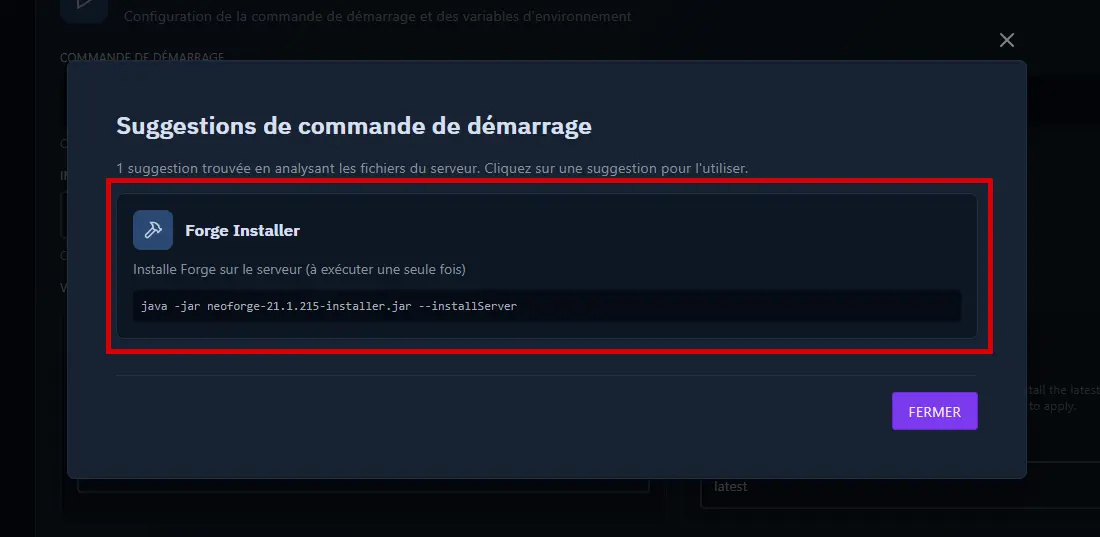
- Click on the suggestion that matches your modpack
- The command appears in the edit field
- Click the ✓ (validate) button to save
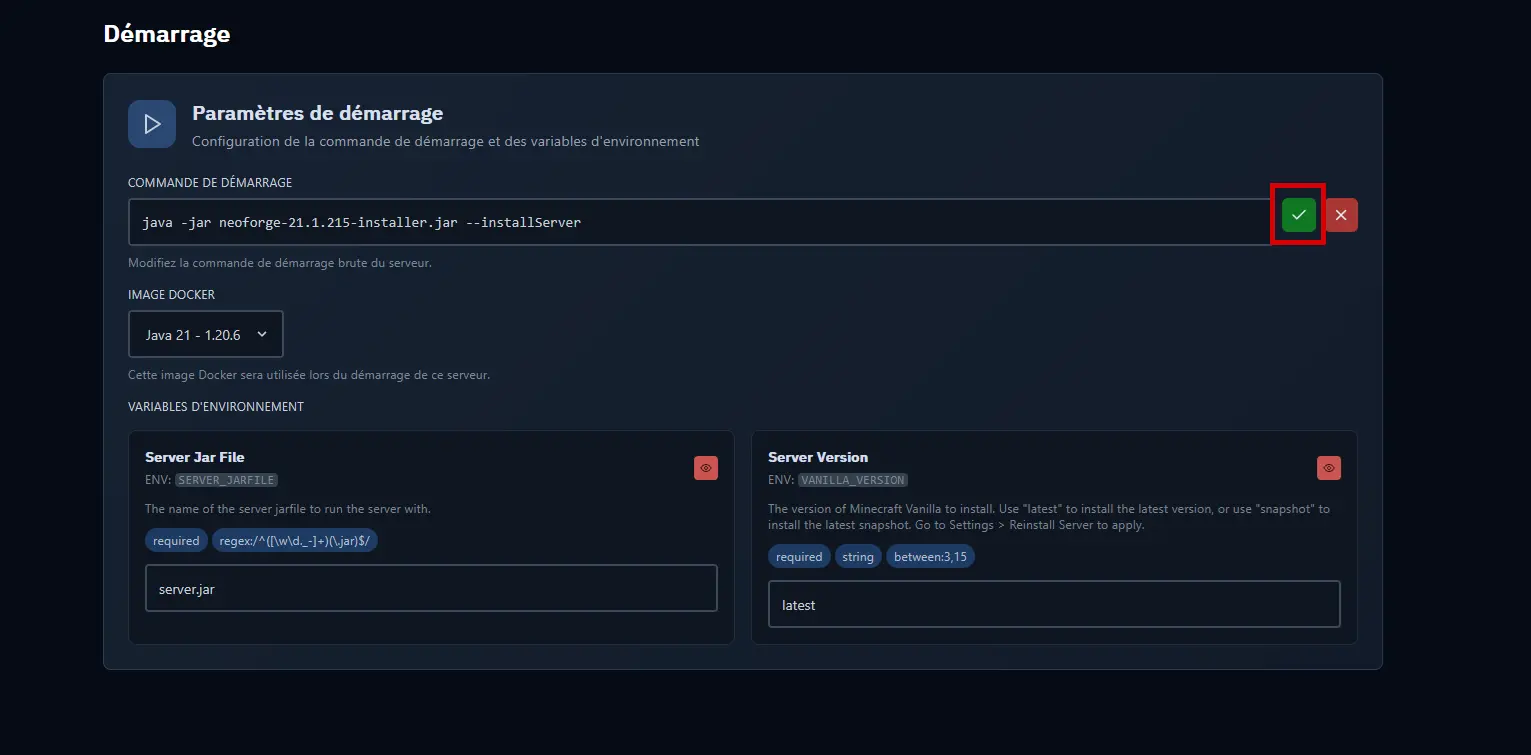
💡 Tip: If no suggestions appear, verify that the modpack files have been installed at the server root.
🔹 Verifying the Java version#
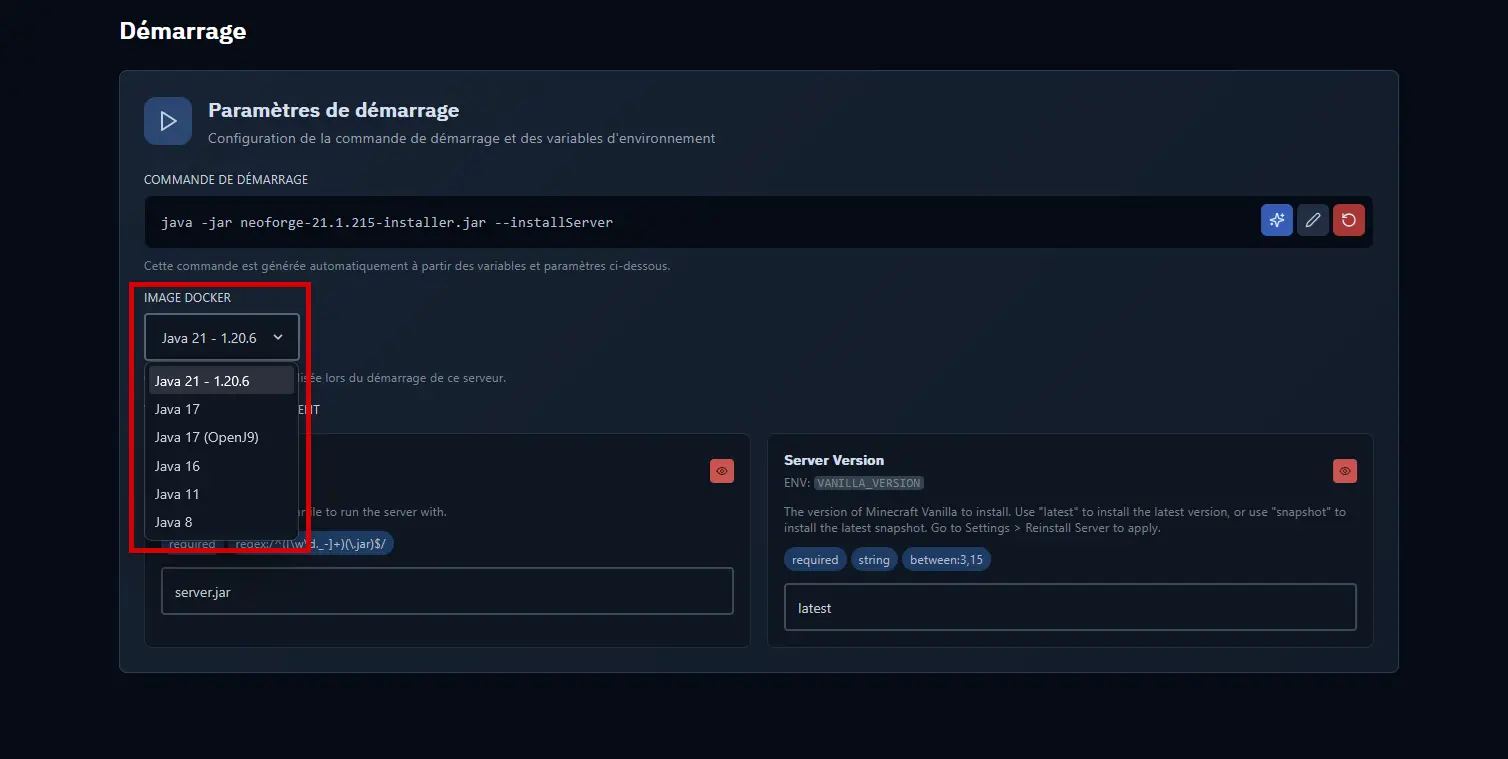
Make sure the correct Java version is selected:
| Minecraft Version | Required Java Version |
|---|---|
| 1.20.x and + | Java 17 or 21 |
| 1.18.x - 1.19.x | Java 17 |
| 1.16.x - 1.17.x | Java 16 or 17 |
| 1.12.x - 1.15.x | Java 8 |
🔹 Accepting the EULA#
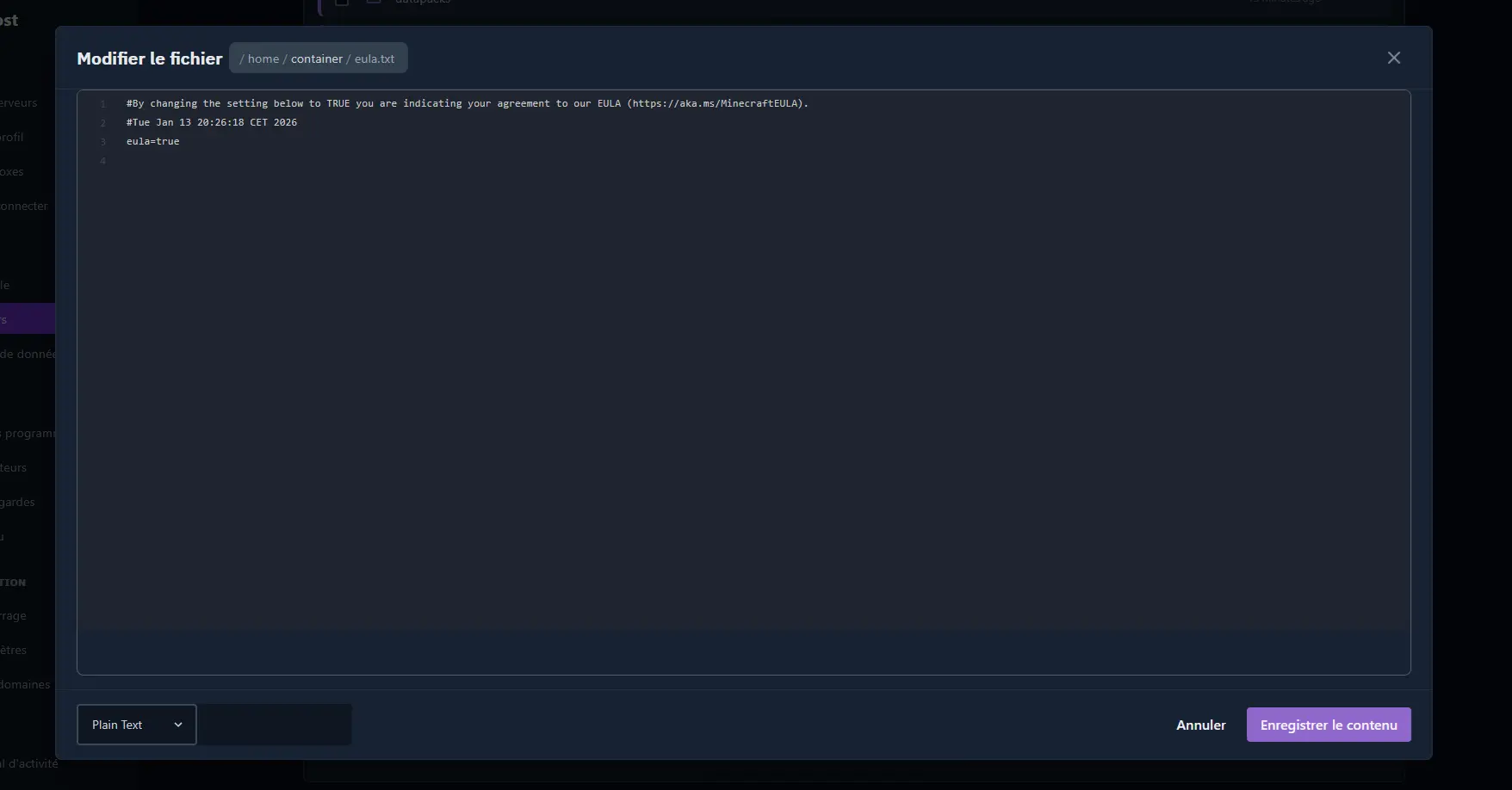
If this is the first installation:
- Go to the Files tab
- Open the
eula.txtfile - Change
eula=falsetoeula=true - Save the file
🔹 Starting the server#
- Return to the Console
- Click Start
- Wait while the mods load
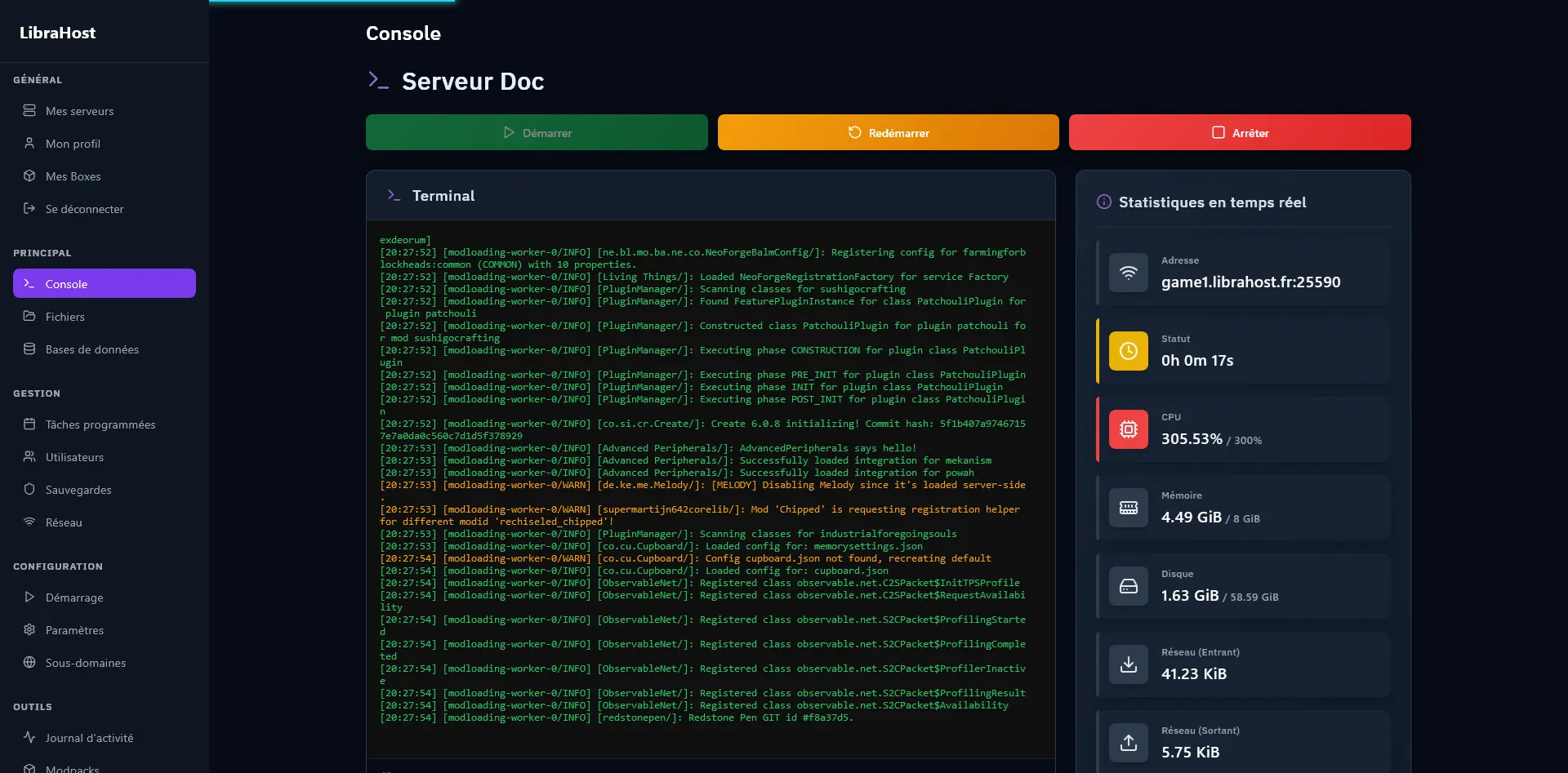
⏱️ Note: The first startup may take several minutes as the server needs to load all mods and generate configuration files.
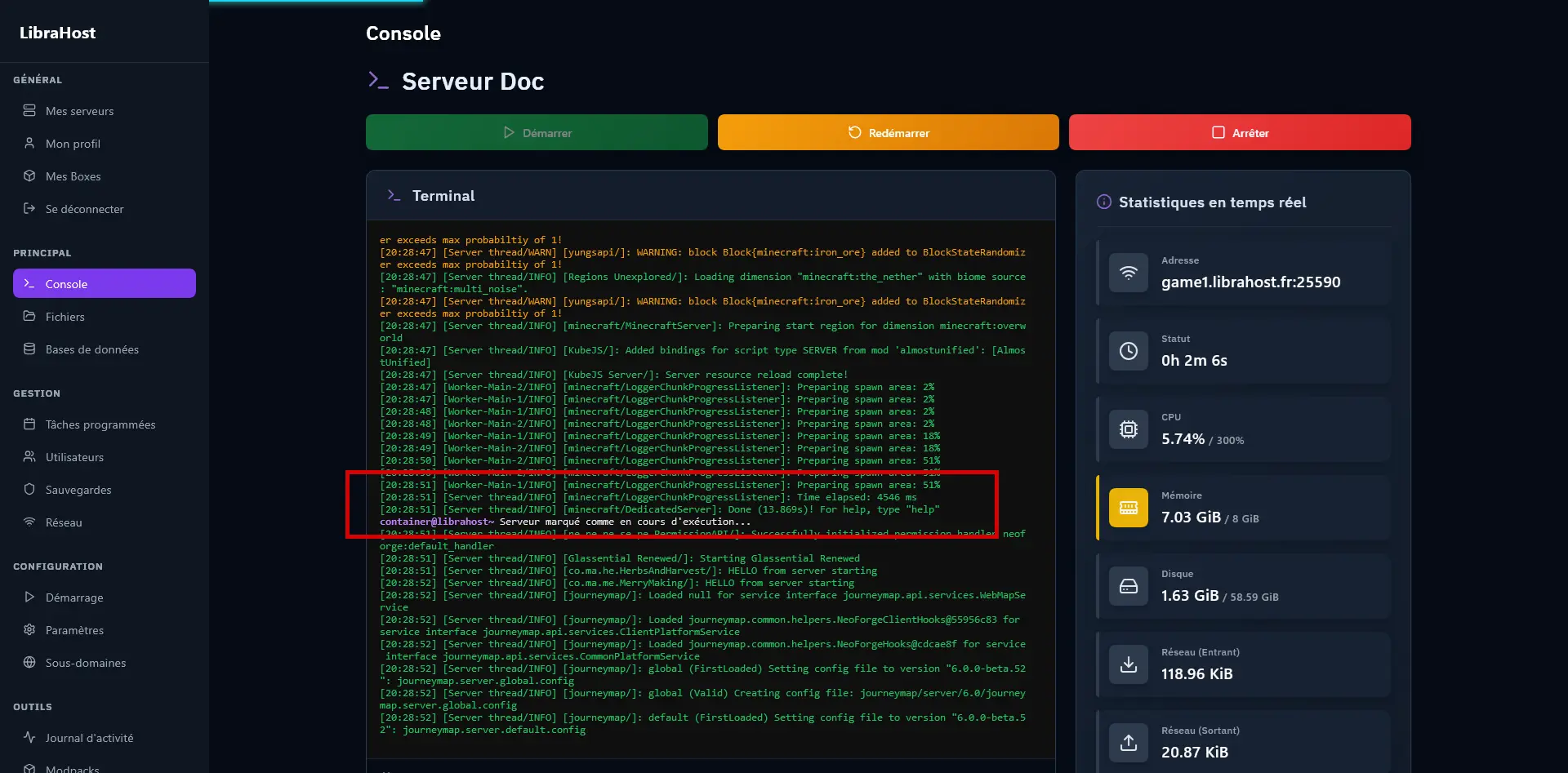
The server is ready when you see:
Done (XXs)! For help, type "help"
6️⃣ Connecting to the server#
🔹 Installing the modpack on the client side#
⚠️ Important: To join the server, you must have exactly the same modpack installed on your computer.
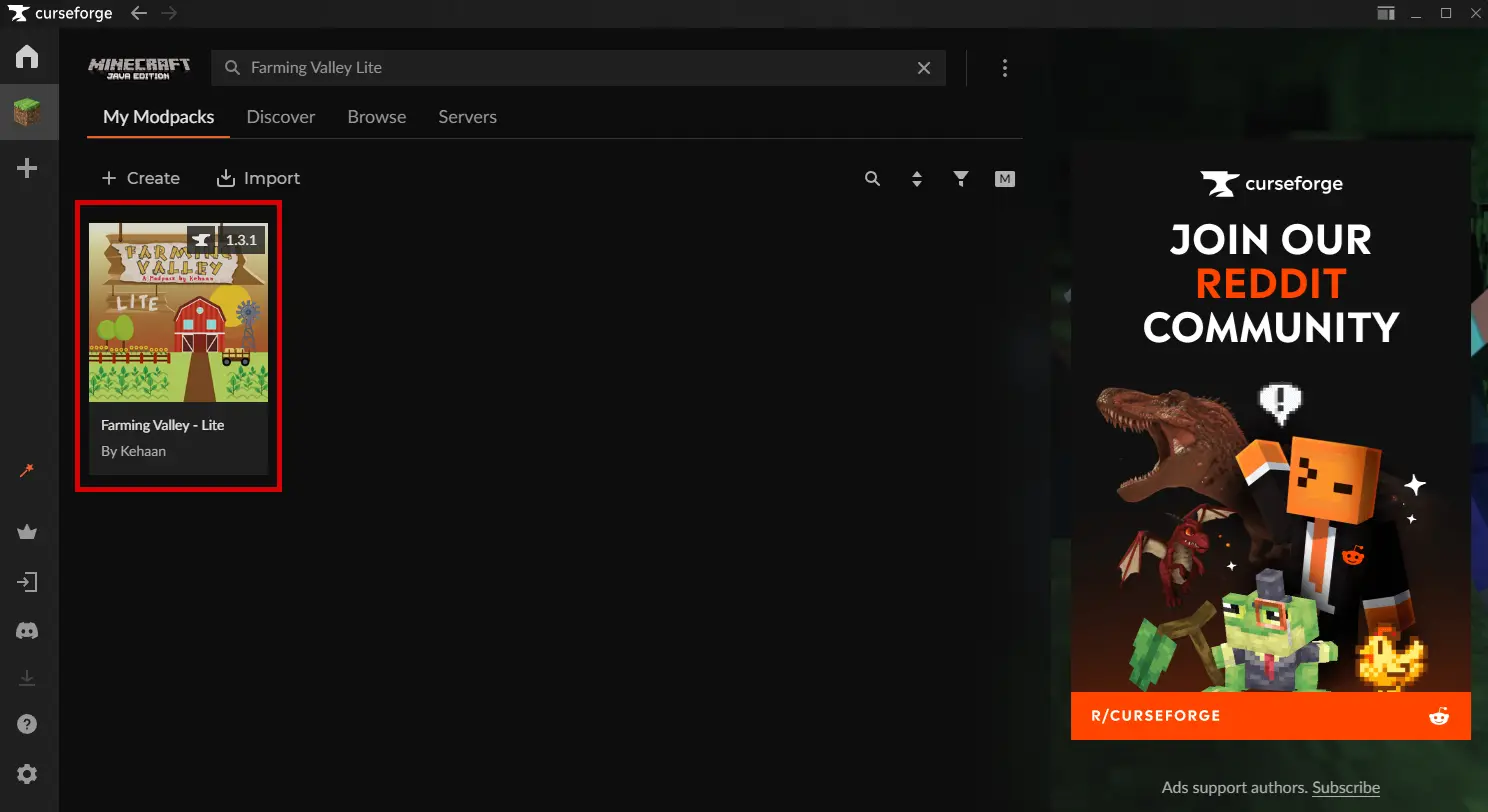
-
Download a compatible launcher:
-
Search and install the same modpack (same version!)
🔹 Joining the server#
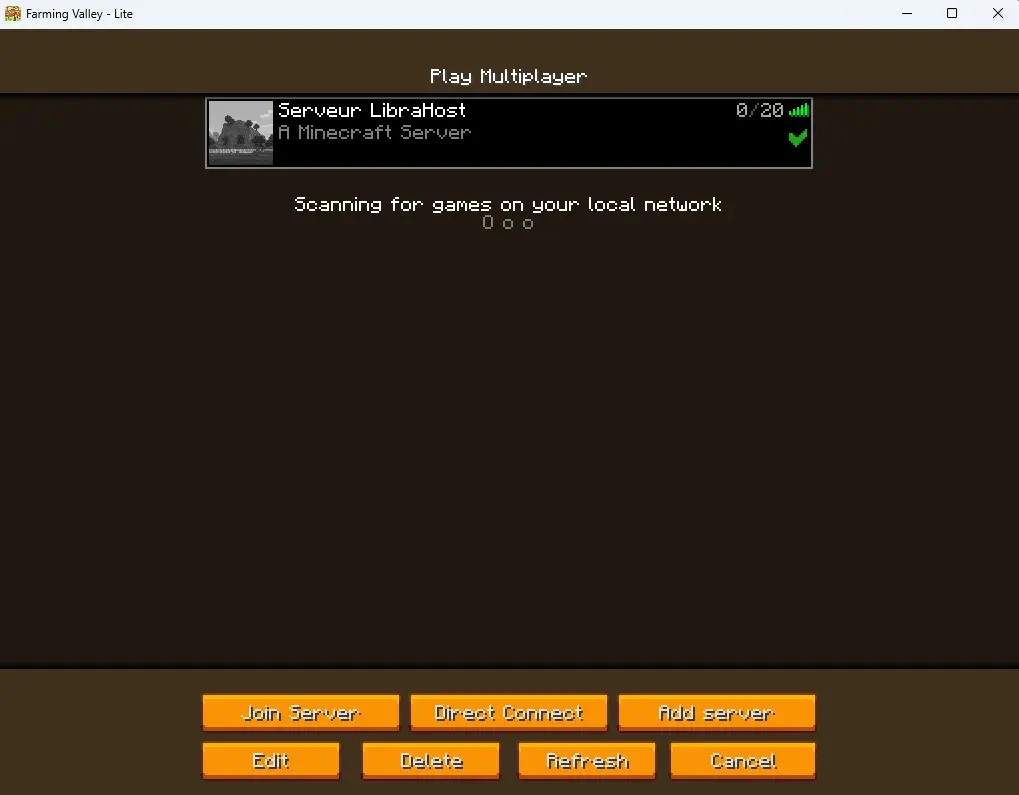
- Launch Minecraft with the modpack profile
- Go to Multiplayer
- Click Add Server
- Enter your LibraHost server address
- Connect and have fun!
🔧 Troubleshooting#
The modpack won't install#
- Check your connection: Installation requires downloading from CurseForge
- Disk space: Make sure you have enough space on your server
- Try again: In case of network error, restart the installation
The server won't start after installation#
- Insufficient RAM: Modpacks often require 4-8 GB of RAM minimum
- Wrong Java version: Check Java/Minecraft compatibility
- Check the logs: The console displays startup errors
"Mod missing" error when connecting#
- Different versions: Make sure you have exactly the same modpack version
- Client-only mods: Some mods are server-side only
The server is lagging or crashing#
- Increase RAM: Via your LibraHost client area
- Reduce render distance: In
server.properties, lowerview-distance - Pre-generate the world: Use a mod like Chunky to pre-generate chunks
✅ Conclusion#
Thanks to the built-in modpack explorer, installing a modpack on your LibraHost server has never been easier! In just a few clicks, you can:
- Browse hundreds of modpacks from CurseForge
- Automatically install the modpack of your choice
- Follow the progress in real-time
Don't forget to:
- Make regular backups of your server
- Keep the same modpack on the client side to be able to connect
- Check for updates to benefit from the latest features
Need help? Contact LibraHost support via your client area.